
Your monitor’s lowest brightness is still too bright at 1am. And still too blue.
A free blue light filter and a real blue light dimmer, in one small program. The blue light filter warms the colours and strips out the blue. The dimmer takes your screen down through the backlight’s real minimum, and then further still, into the dark your monitor was never willing to give you.
Get it from MicrosoftSigned by Microsoft · no security warning · updates itself
Would rather not use the Store? Download the file directly. Windows shows a “protected your PC” notice the first time on that one; choose More info then Run anyway.
A blue light filter and a blue light dimmer are not the same thing
Most blue light filter software for Windows does one of these and quietly lets you assume it does the other. A blue light filter and a screen dimmer fix different halves of the same problem, and you need both to be comfortable at night.
Blue light filter — changes colour
Shifts everything towards warm orange to strip out short-wavelength blue, the part that tells your body it is still daytime. Your screen puts out exactly as much light as before. Only the colour of that light changes.
Blue light dimmer — changes light output
Turns down the actual backlight, then keeps going with a dark layer once the backlight has bottomed out. Less total light energy reaching your eyes. The colours stay exactly as they were.
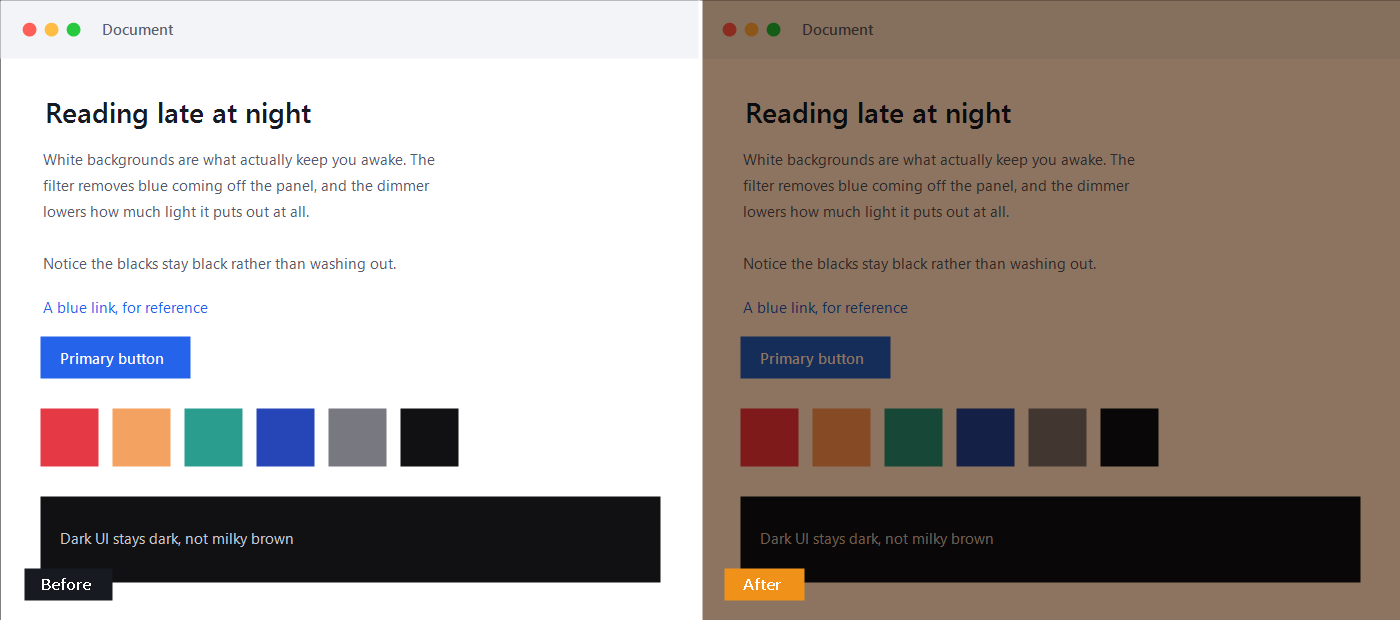
And two kinds of blue light dimming exist. Both stop too early.
The first changes your monitor’s real backlight, but can only go as low as the monitor allows, which on most screens is still uncomfortably bright in a dark room. The second lays a dark tint on top: it goes properly dark, but the backlight is still blazing underneath at full power, and the tint shows up in every screenshot and screen share. This app does both, on one slider, and never makes you think about which one is doing the work.
What the blue light filter and dimmer actually do
Every one of these exists because something else in this category gets it wrong.
Darker than your monitor allows
Drag past the tick mark and the screen keeps getting darker. No second control to find, no mode to switch into. It simply keeps going.
Real backlight control
Where your monitor supports it, this moves the actual backlight instead of faking it with a tint, so the screen genuinely emits less light. Laptop panels and most external monitors work.
Invisible in screenshots
Share your screen on a call and nobody sees orange. Take a screenshot and the colours come out normal. Most filters fail this and it drives people mad.
Every screen, named properly
Each monitor gets its own slider labelled with its real name, not “Generic PnP Monitor”. Two identical screens are told apart by which one is on the left.
Steps aside for colour work
Open Photoshop or Lightroom and the filter switches itself off so you see true colours, then returns when you leave. One shortcut does it on demand anywhere.
Knows when to give up
Fullscreen games draw straight past any overlay. Rather than half-working and looking broken, it pauses cleanly and lets the real backlight control carry on.
Weekdays and weekends
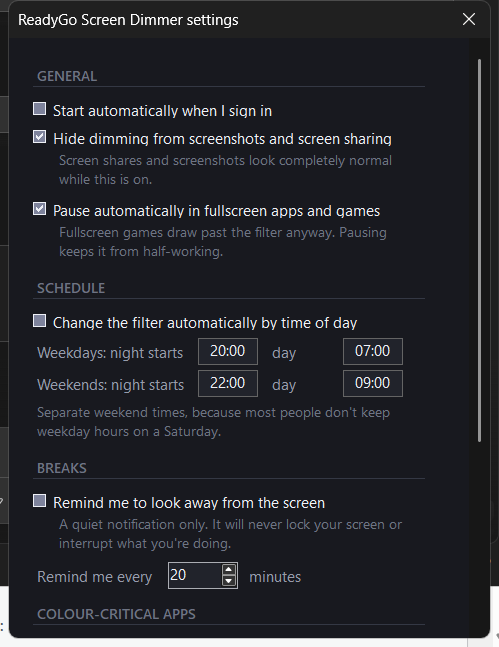
Warm up at 8pm on a work night and 10pm on a Saturday. Nearly every other app assumes you keep identical hours seven days a week.
Survives sleep and docks
Close the lid, undock, add a second screen, update your graphics driver. It finds your monitors again and puts your settings back, instead of quietly controlling nothing.
It cannot get stuck dark
Push it somewhere unreadable and a message appears with a ten second countdown, then puts everything back on its own. Ctrl+Alt+0 does it instantly at any time.
Blue light filter software, compared honestly
These are all decent programs. Here is exactly where each one stops.
| RGT Screen Dimmer | f.lux | Twinkle Tray | CareUEyes | Night Light | |
|---|---|---|---|---|---|
| Dims below the monitor’s minimum | Yes | No | No | Yes | No |
| Controls the real backlight | Yes | No | Yes | No | No |
| Both, on one slider | Yes | No | No | No | No |
| Blue light filter | Yes | Yes | No | Yes | Yes |
| Hidden from screen sharing | Yes | No | n/a | No | n/a |
| Separate weekend schedule | Yes | No | No | No | No |
| Download size | Under 1 MB | ~1 MB | ~88 MB | ~10 MB | n/a |
| Price | Free | Free | Free | from $2.90/mo | Free |
Compared August 2026 against each product’s own published features and current pricing. Sizes approximate.
Why is it so small?
Because it is an ordinary Windows program, not a web browser in a costume. The most popular tool in this category ships an entire copy of Chrome just to draw a brightness slider, which is why it downloads at 88 MB, runs five processes and sits on hundreds of megabytes of memory. This one opens instantly, uses about 30 MB, and needs nothing installed first because it uses what Windows already has. On an older laptop that difference is the whole experience.
This is the whole app
No dashboard, no sign-in, no upsell screens. One panel by the clock, and a settings window you will probably open once.
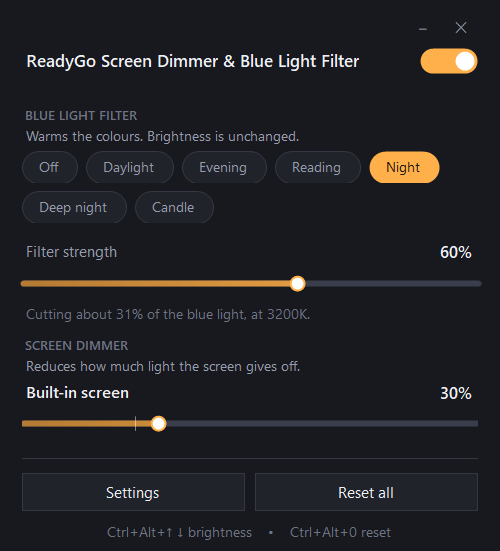
Exactly how much blue each setting removes
Most blue light filters ask you to take their word for it. These are the real numbers, read straight out of the colour curve the app loads into your graphics card.
| Preset | Colour temp | Red kept | Green kept | Blue kept | Blue removed | White looks like |
|---|---|---|---|---|---|---|
| Off | 6500K | 100% | 100% | 100% | none | |
| Daylight | 5600K | 100% | 98.7% | 97.6% | 2% | |
| Evening | 4200K | 100% | 93.1% | 87.5% | 13% | |
| Reading | 3800K | 100% | 89.4% | 80.8% | 19% | |
| Night | 3200K | 100% | 83.3% | 68.9% | 31% | |
| Deep night | 2600K | 100% | 74.0% | 50.3% | 50% | |
| Candle | 2000K | 100% | 60.7% | 19.7% | 80% |
How to read this, and what it is not. These figures are the exact per-channel multipliers the app writes into your display’s colour curve, taken from the shipping build, so you can verify them yourself. Red is never touched, which is why the picture stays bright rather than going murky. What this is not is a spectrometer reading of a physical screen: the light your monitor finally emits also depends on its own backlight, and measuring that properly needs lab hardware. We would rather publish a number we can stand behind than one that looks more impressive.
Installing it takes about twenty seconds
There is no installer and nothing to configure. The only step that surprises people is the third one, so here it is up front.
Download and unzip
You get a small zip file. Right-click it and choose Extract All, then put the folder anywhere you like. Your Desktop is fine.
Double-click the program
Open RGT Screen Dimmer.exe. Nothing installs, nothing is written to your Windows folder, and no account is needed.
Windows will warn you. Click through it.
A blue “Windows protected your PC” box appears with only a Don’t run button showing. Click More info and a Run anyway button appears. That is the one you want.
Why does Windows do that? Microsoft Defender SmartScreen warns about any program it has not yet seen enough people download safely. It is a reputation check, not a virus scan, and nothing was found in the file. Every new program from a small publisher gets this until it builds up download history, which is why the message says unrecognized rather than unsafe. You are welcome to scan the file yourself first, and the app is a single small file, so there is very little in there to hide.
Support
The questions we get asked most, about the blue light filter, the dimmer and getting it running. If your answer is not here, reach us via the contact page.
Is this a blue light filter or a blue light dimmer?
Both, as two separate controls. The blue light filter changes the colour of the screen, shifting it warm to strip out short-wavelength blue. The dimmer changes how much light the screen actually puts out, first by turning down the real backlight and then by going darker still once the backlight has bottomed out. Most apps give you one or the other. You can run either on its own, or both together.
Does the blue light filter work on Windows 11?
Yes, on Windows 10 and Windows 11, on laptop screens and external monitors. It goes considerably further than the built-in Night Light: you get a full colour temperature range, presets, a separate weekend schedule, and it will not show up in screenshots or screen shares.
Is it really free, or free until you change your mind?
Free. No trial, no account, no licence key, nothing that expires. We build free Windows tools so people find the rest of what we make. If a paid version ever appears it will be extra features on top, and a single payment, never a subscription.
Windows says “Windows protected your PC”. Is something wrong?
No, and this is the most common question we get. The first time you open it, Windows shows a blue “Windows protected your PC” box with only a Don’t run button visible. Click More info, and a Run anyway button appears. That is the one you want.
It happens to any brand new program that has not yet been downloaded by enough people for Microsoft to have built up a reputation for it. It is a reputation check, not a virus scan, and nothing was found in the file, which is why the wording says unrecognised rather than unsafe. You are welcome to scan it yourself first, and it is a single small file, so there is very little room in there to hide anything.
What if I make the screen too dark to see?
It stops you. Any change that takes the screen into genuinely unreadable territory brings up a message with a ten second countdown, and everything reverts on its own unless you confirm you can still read it. That message stays at full brightness even when the rest of the screen is dark. Ctrl+Alt+0 also resets everything instantly.
My monitor’s brightness won’t move. Why?
Some monitors refuse to let software touch their backlight, usually because a setting called DDC/CI is switched off in the monitor’s own menu, or because it is plugged in through a docking station. The app notices and dims that screen in software instead, so it still works, and it tells you which of the two is happening rather than just failing.
Will it slow my computer down?
No. It is a few hundred kilobytes of code doing almost nothing most of the time. No background updater, no telemetry, no web browser hiding inside it.
What are the keyboard shortcuts?
Six, and they work from anywhere in Windows without the panel being open:
Ctrl + Alt + ↑ and Ctrl + Alt + ↓ make every screen brighter or darker in steps of 5.
Ctrl + Alt + 0 is the panic key: it puts brightness, dimming and colour back to normal instantly.
Ctrl + Alt + B turns the whole thing on or off.
Ctrl + Alt + T shows true colours for a moment, handy for checking a photo.
Ctrl + Alt + D opens and closes the panel.
If another program has already claimed one of these, the app says so once and carries on with the rest rather than failing.
Is there a Mac version?
Not yet. The download on this page is a Windows .exe and will not open on macOS, and we are not going to pretend otherwise to get the click. A Mac build is being worked on and this page will be updated when it is ready. In the meantime Lunar is the closest thing to this on a Mac, and we would genuinely point you there.
Does it work with two or three monitors?
Yes. Every screen gets its own slider with its real name on it, plus a switch to move them all together. Unplugging or adding a monitor is handled automatically.
Still stuck? Get in touch through the contact page and tell us which monitor you are using. Running the app with --diag writes a short report to your Desktop that usually explains it straight away.
Kit that helps after dark
Software can only do so much about a bright room and a bright screen. These are the physical things that make the biggest difference, and the app is free precisely because this page is not.
Blue light glasses for daytime
Clear or very lightly tinted lenses for long working days. They barely change how things look, so you can wear them on calls without going orange.
Browse on Amazon →Amber glasses for the last hour
Deep orange lenses that cut far more blue than any screen filter can, because they also handle the lamps, the TV and your phone.
Browse on Amazon →Monitor light bar
Clips to the top of your screen and lights the desk, not the display. The single best fix for working in a dark room, and it pairs perfectly with a dimmed screen.
Browse on Amazon →Bias lighting strip
A warm LED strip behind the monitor. Raises the wall brightness so your eyes stop fighting the contrast between a dark room and a lit screen.
Browse on Amazon →Anti-glare screen filter
A matte panel that sits over the display. Useful if the problem is a window or an overhead light bouncing off the glass rather than the screen itself.
Browse on Amazon →Dimmable warm desk lamp
A lamp you can take down to a candle-ish level in the evening. A dim screen in a brightly lit room is still uncomfortable, and vice versa.
Browse on Amazon →How these links work: they are Amazon affiliate links, so if you buy something we may earn a small commission at no extra cost to you. It costs you nothing and it is what keeps the app free with no ads inside it, no account and no paid tier. We only list categories we would actually recommend, and we make nothing if you simply download the app and leave.
Support the App
If you like this app or find it useful, please consider supporting us.
Your support simply helps us keep the tools free and ad-free.
Secured by Stripe. You never leave this page.
Stop squinting at a screen that won’t turn down.
Unzip it, double-click it, drag the slider. That is the whole setup.
Get it from MicrosoftWindows 10 & 11 · version 1.4.2
Would rather not use the Store? Download the file directly. Windows shows a “protected your PC” notice the first time on that one; choose More info then Run anyway.
Secure payment by Stripe. Your card details never touch our servers.