

If you sell with WooCommerce, the fastest way to lose a sale is to make people work for it. The default flow asks a shopper to add an item to the cart, view the cart, then start checkout. Every one of those steps is a chance to leave, and most people take it: across the industry, close to 70% of shoppers who add something to their cart never complete the purchase (Baymard Institute). A Buy Now button removes that friction by sending shoppers straight from the product page to checkout. This guide shows you how to add a Buy Now button in WooCommerce without touching code.
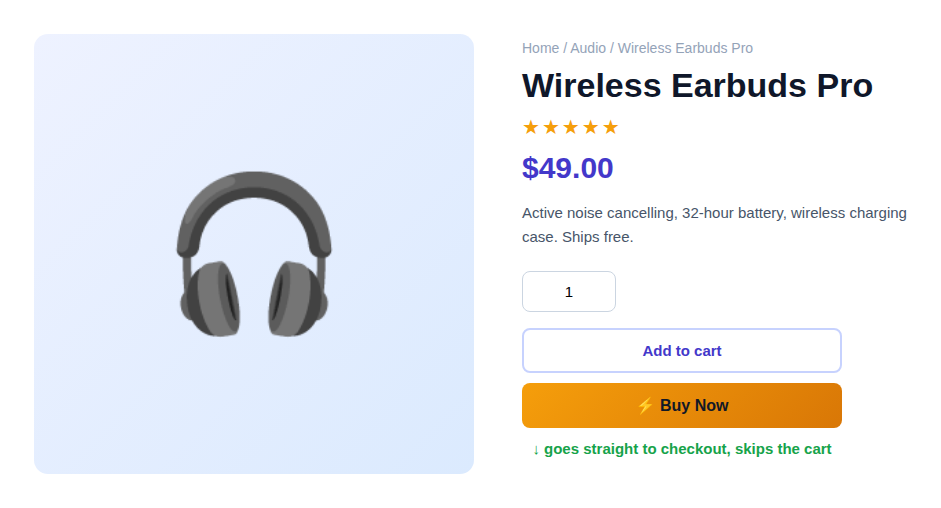
What a Buy Now button actually does
A Buy Now button is a second call to action on your product page. Instead of adding the item to the cart and leaving the shopper on the page, it adds the item and immediately redirects them to the checkout (or the cart, if you prefer). For a store where most orders are a single item, such as a course, a subscription box, or a hero product, that one change can be the difference between a completed order and an abandoned one.
It works alongside your normal Add to Cart button, so shoppers who want to keep browsing still can. You are adding an express lane, not removing the scenic route.
Why skipping the cart helps conversions
Every extra page between “I want this” and “here is my payment” gives doubt time to creep in. The cart page in particular is where shoppers pause to reconsider, hunt for a coupon, or get distracted. Sending buyers directly to the WooCommerce checkout keeps their momentum. Fewer steps means fewer exits, which is exactly why express checkout has become standard on large stores. A Buy Now button brings that same shortcut to any WooCommerce shop.
How to add a Buy Now button in WooCommerce (step by step)
You do not need a developer or a page builder. The free ReadyGo Express Buy Button plugin adds the button and gives you the settings to control it.
1. Install the free plugin
In your WordPress dashboard go to Plugins > Add New, search for ReadyGo Express Buy Button, then install and activate it. You can also get it free on WordPress.org. It requires WooCommerce, which you almost certainly already run.
2. Open the settings
After activating, open WooCommerce > Express Buy Button. Everything is on one screen, in plain language, so you can set it up in a couple of minutes.
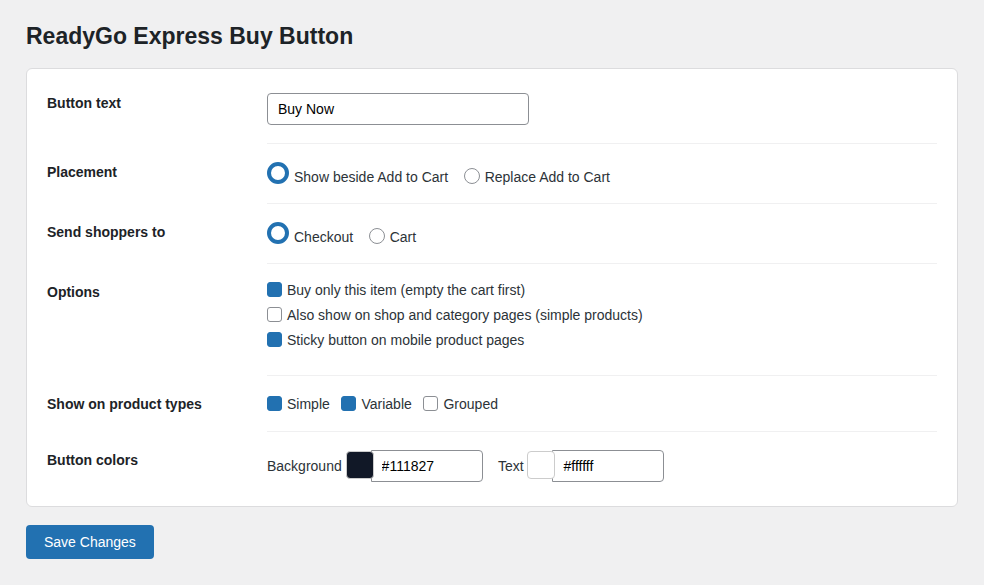
3. Choose placement and destination
Decide where the button appears and where it sends people:
- Placement: show the Buy Now button beside Add to Cart, or replace Add to Cart entirely for a single-action page.
- Send shoppers to: checkout (the express option) or the cart, if you prefer a review step.
4. Turn on the options you want
A few switches let you tune the behavior to your store:
- Buy only this item: empties the cart first so the express purchase is exactly one product, with no surprises at checkout.
- Sticky button on mobile: keeps the Buy Now button visible as shoppers scroll a product page on their phone.
- Product types: enable the button for simple and variable products. For variable products, the button stays disabled until a shopper picks a variation, so nobody buys the wrong option.
5. Match your button colors
Set the background and text colors so the Buy Now button fits your theme and stands out as the primary action. A high-contrast color usually converts best, but keep it on brand.
Show Buy Now on shop and category pages
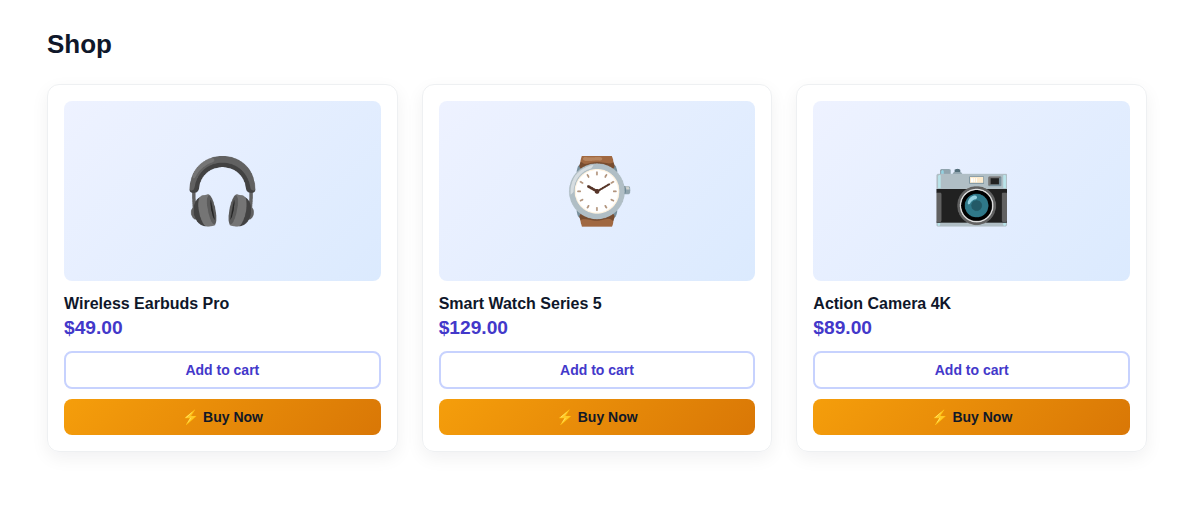
You can also add the Buy Now button to your shop and category listings for simple products, so shoppers can buy straight from the grid without opening the product page at all.
Best practices for a high-converting Buy Now button
- Keep Add to Cart too unless you truly sell one item at a time. Give browsers the option to combine orders.
- Send to checkout, not the cart, when your goal is speed. That is the whole point of the button.
- Use a contrasting color so the Buy Now button reads as the main action at a glance.
- Turn on the sticky mobile button. Most WooCommerce traffic is mobile, and a button that follows the scroll is always one tap away.
- Pair it with clear descriptions. An express button works best when the shopper is already convinced, so make the product page do its job. If writing descriptions is a chore, AI product descriptions can help.
Frequently asked questions
Does a Buy Now button work with variable products?
Yes. The button stays inactive until the shopper selects a variation, then it adds that exact option and goes to checkout. This prevents accidental purchases of the wrong size or color.
Will it replace my Add to Cart button?
Only if you want it to. You can show Buy Now beside Add to Cart, or replace Add to Cart for a single-action product page. It is your choice per store.
Can shoppers buy just one item and skip the rest of their cart?
Yes. Turn on “buy only this item” and the plugin empties the cart before the express purchase, so the order contains exactly the product they clicked.
Is a Buy Now button free in WooCommerce?
Yes. ReadyGo Express Buy Button is free and includes placement, destination, variable-product support, sticky mobile, shop and category buttons, and color controls with no paywall. See the full skip the cart guide for more on direct checkout.
Do I need to edit any code?
No. Everything is handled in the settings screen. There are no templates to edit and no snippets to paste.
Add your Buy Now button today
A Buy Now button is one of the simplest, highest-impact changes you can make to a WooCommerce store: less friction, fewer abandoned carts, faster purchases. Install the free ReadyGo Express Buy Button, or get it free on WordPress.org, and give your shoppers the express lane they want.